Hyper-V Virtual Identification

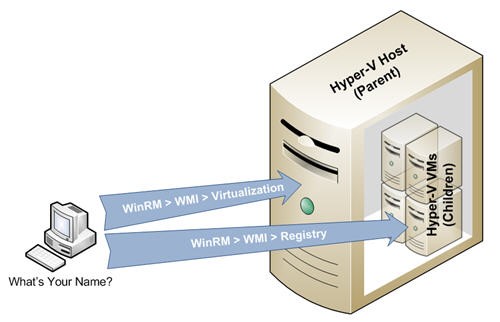
Since virtual machines can be easily moved between physical hosts (parents), it becomes important to track where virtual machines are physically residing for both asset management as well as troubleshooting purposes. The following post focuses on discovering the relationship between virtual hosts (parents) and the virtual machines (children) from both the perspective of the parent as well as the perspective of the child.
HyperV-ID-1

Note: The following examples use the WinRM and WinRS command-line utilities which shipped with Windows Vista and Windows Server 2008, but are also available as an Out-Of-Band install for Windows XP SP2+ and Windows Server 2003 SP1+ here.

Query the Parent:

Most commonly used for asset collection, this model gathers the names (and other virtual machine characteristics) of all the children running on a virtual host. This method queries the Hyper-V specific WMI provider/class by using the following command.

winrm enumerate wmi/root/virtualization/msvm_computersystem /r:<remote Hyper-V Host>

With the following sample output:

Msvm_ComputerSystem
     AssignedNumaNodeList = 0
     Caption = Virtual Machine
     CreationClassName = Msvm_ComputerSystem
     Description = Microsoft Virtual Machine
     ElementName = PROV-XP
     EnabledDefault = 2
     EnabledState = 2
     HealthState = 5
     InstallDate
          Datetime = 2008-07-01T21:47:02Z
     Name = 31F497F1-2437-4E89-8308-BE07FB5C14C2
     NameFormat = null
     OnTimeInMilliseconds = 432464839
     OperationalStatus = 2
     OtherEnabledState = null
     PrimaryOwnerContact = null
     PrimaryOwnerName = OTTOH-HOST\Administrator
     ProcessID = 2628
     RequestedState = 12
     ResetCapability = 1
     Status = null
     TimeOfLastConfigurationChange
          Datetime = 2008-07-30T17:07:06Z
     TimeOfLastStateChange
          Datetime = 2008-07-30T17:07:06Z

Query the Child:

Most commonly used for troubleshooting scenarios where a virtual machine is being evaluated and needs to be queried in order to determine its physical host (parent). The following command queries the registry on the child in order to determine its host (parent):

HyperV-ID-2

Remote Access Method #1 (the /f parameter merely structures the output in XML – handy for scripting, especially in PowerShell):

winrm invoke GetStringValue wmi/root/default/StdRegProv @{hDefKey="2147483650";sSubKeyName="Software\Microsoft\Virtual Machine\Guest\Parameters";sValueName="PhysicalHostNameFullyQualified"} /r:<Remote VM> /u:<Username> /p:<Password> /f:pretty

Remote Access Method #2:

winrs /r:<Remote VM> /u:<Username> /p:<Password> reg query "HKLM\Software\Microsoft\Virtual Machine\Guest\Parameters" /v PhysicalHostNameFullyQualified

Note: The first method demonstrates a powerful way to access the value of any registry key using the ‘StdRegProv’ WMI provider via WS-Man/WinRM for remote transport. Other registry hives can be accessed with the following hDefKey values: HKLM=2147483650, HKCU=2147483649, HKCR=2147483648, HKEY_USERS=2147483651.

Enjoy!

Quick and Dirty Web Site Monitoring with PowerShell

The other day Mark noticed that redirections for our http://www.sysinternals.com/ URL were intermittently failing. In order to get more objective data, I built a script that tested the URL every 5 seconds, and reported back Success or Failure as well as performance ﴾how long it took to completely download base HTML content﴿. I found that PowerShell provided an easy way to use the WebClient .Net object and evaluate the returned HTML content.

Web-Monitoring-1

Example 1: Single Site Monitoring

The following example opens a URL every 5 minutes, tests the content, and measures the time it took to download the HTML for the page. Notice that all the HTML is dumped into a big fat string. The string is then searched for specific text that is known to be in the requested page. Note that this script runs forever and can be stopped with a <Ctrl> ‘C’.

Example PowerShell script:
$webClient = newobject
System.Net.WebClient
$webClient.Headers.Add("useragent","PowerShell Script")
while (1 eq 1) {
   $output = ""
   $startTime = getdate
   $output = $webClient.DownloadString "http://www.sysinternals.com/")
   $endTime = getdate
   if ($output like "*Mark Russinovich*") {
      "Success`t`t" + $startTime.DateTime + "`t`t" + ($endTime $startTime).TotalSeconds + " seconds"
   } else {
      "Fail`t`t" + $startTime.DateTime + "`t`t" + ($endTime $startTime).TotalSeconds + " seconds"
   }
   sleep(300)
}

Web-Monitoring-2

Example 2: Monitoring and Alerting for Multiple Web Sites

This script monitors multiple URLs ﴾or web sites﴿, and incorporates e‐mail alerting and logging. Unlike the above script, it is designed to be triggered from the Windows Task Scheduler ﴾or some other job scheduler﴿ rather than Quick and Dirty Web Site Monitoring with PowerShell running forever in a loop. Notice that one of the URLs is actually a zipped file and PowerShell has no problem evaluating it as a string.

Example PowerShell script:
# Collects all named paramters (all others end up in $Args)
param($alert)
# Display Help
if (($Args[0] eq "?") or ($Args[0] eq "help")) {
   ""
   "Usage: SysinternalsSiteTest.ps1 alert <address> log"
   " alert <address> Send email alerts"
   " log Log results"
   ""
   "Example: SysinternalsSiteTest.ps1 alert somebody@nospam.com log"
   ""
   exit
}
# Create the variables
$global:GArgs = $Args

$urlsToTest = @{}
$urlsToTest["Sysinternals Redirect"] = "http://www.sysinternals.com"
$urlsToTest["TechNet Redirect"] = "http://www.microsoft.com/sysinternals"
$urlsToTest["Sysinternals Home"] = "http://www.microsoft.com/technet/sysinternals/default.mspx"
$urlsToTest["Sysinternals Forum"] = "http://forum.sysinternals.com"
$urlsToTest["Sysinternals Blog"] = "http://blogs.technet.com/sysinternals"
$urlsToTest["Sysinternals Downloads"] = "http://download.sysinternals.com/Files/NtfsInfo.zip"
$successCriteria = @{}
$successCriteria["Sysinternals Redirect"] = "*Mark Russinovich*"
$successCriteria["TechNet Redirect"] = "*Mark Russinovich*"
$successCriteria["Sysinternals Home"] = "*Mark Russinovich*"
$successCriteria["Sysinternals Forum"] = "*Sysinternals Utilities*"
$successCriteria["Sysinternals Blog"] = "*Sysinternals Site Discussion*"
$successCriteria["Sysinternals Downloads"] = "*ntfsinfo.exe*"
$userAgent = "PowerShell User"
$webClient = newobject System.Net.WebClient
$webClient.Headers.Add("useragent",$userAgent)
foreach ($key in $urlsToTest.Keys) {
   $output = ""
   $startTime = getdate
   $output = $webClient.DownloadString($urlsToTest[$key])
   $endTime = getdate
   if ($output like $successCriteria[$key]) {
      $key + "`t`tSuccess`t`t" + $startTime.DateTime + "`t`t" + ($endTime $startTime).TotalSeconds + " seconds"
      if ($GArgs eq "log") {
         $key + "`t`tSuccess`t`t" + $startTime.DateTime + "`t`t" + ($endTime - $startTime).TotalSeconds + " seconds" >> WebSiteTest.log
      }
   } else {
      $key + "`t`tFail`t`t" + $startTime.DateTime + "`t`t" + ($endTime $startTime).TotalSeconds + " seconds"
      if ($GArgs eq "log") {
         $key + "`t`tFail`t`t" + $startTime.DateTime + "`t`t" + ($endTime - $startTime).TotalSeconds + " seconds" >> WebSiteTest.log
      }
      if ($alert) {
         $emailFrom = "computer@nospam.com"
         $emailTo = $alert
         $subject = "URL Test Failure " + $startTime
         $body = "URL Test Failure: " + $key + " (" + $urlsToTest[$key] + ") at " + $startTime
         $smtpServer = "somesmtpserver.nospam.com"
         $smtp = newobject Net.Mail.SmtpClient($smtpServer)
         $smtp.Send($emailFrom,$emailTo,$subject,$body)
      }
   }
}

Web-Monitoring-3

Enjoy!

Quick and Dirty Software Inventory with PsInfo and PowerShell

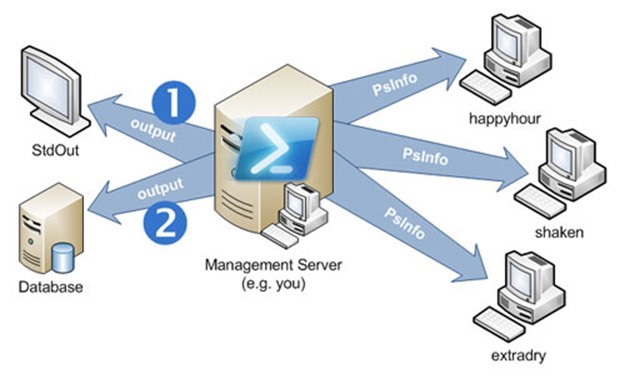
PsInfo is great for gathering asset information from Windows computers, both locally and remotely. PowerShell is great for automation and cleaning up output (among other things) as well as working with database driven data.

The following examples show how to gather an itemized list of the installed software on remote machines, process the data, then either display it to the screen or store it in a database. It’s worth noting that PsInfo can also work on multiple remote computers from its native command line, or even read a list of computers from a file (check out the PsInfo site for more info). Since the final example seeks to show PsInfo in a database driven envoriment, PowerShell comes in very handy.

Note: In order for this example to work the necessary network connectivity and credentials will need to be in place.

Consider the following examples:

  1. The output is merely displayed on the screen. With this method the output can be redirected to a file and imported into an application like Excel for further analysis or record keeping.
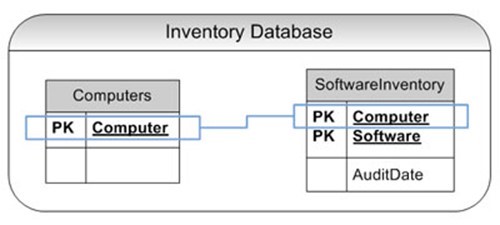
  2. A database is used to drive the computers polled as well as store the output. The database table is very flat (one table) with 2 fields: ‘Computer’ and ‘Software’. For large amounts of data, this will need to be normalized.

Software-Inventory-1

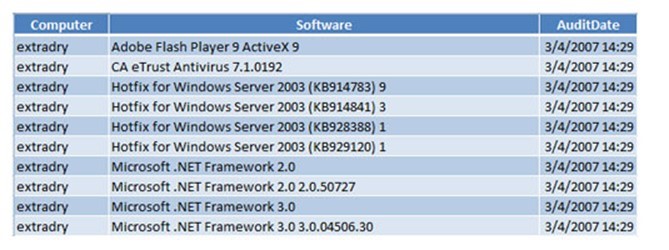
With the following output (imported into Excel):

Software-Inventory-2

Example 1: Standard Screen Output

The following PowerShell script gathers a software inventory from 3 remote computers (‘happyhour’, ‘shaken’, and ‘extradry’). Presumably, your computer names will be different. After gathering and parsing the data, it’s then displayed on the screen for all machines successfully queried.

Before running this script, test your connectivity and credentials with a single PsInfo command:

PsInfo -s Applications \\somecomputer
Example PowerShell script:
$computersToQuery = ("happyhour","shaken","extradry")
$softwareInventory = @{}
foreach ($computer in $computersToQuery) {
  $psinfoOutput = ./psinfo.exe -s Applications \\$computer
  $foundSoftwareInventory = 0
  $computerName = ""
  foreach ($item in $psinfoOutput) {
    if ($foundSoftwareInventory -eq 1) {
      # Force the results to a string
      # Remove any single quotes which interfere with T-SQL statements
      # Load the result into a hash whereby removing any duplicates
      [string]$softwareInventory[$computerName][$item.Replace("'","")] = ""
    }
    if ($item -like "System information for *") {
     $computerName = $item.Split("\")[2].TrimEnd(":")
    } elseif ($item -eq "Applications:") {
     $foundSoftwareInventory = 1
     $softwareInventory[$computerName] = @{}
    }
  }
}
foreach ($computer in $softwareInventory.Keys) {
  foreach ($softwareItem in $softwareInventory[$computer].Keys) {
   $computer + ":" + $softwareItem
  }
}

Your output should look something like:

Software-Inventory-3

Example 2: Save Output to a Database

This example is additive to the first in that it adds the following 3 items:

  1. Pulls the list of computer to query from a database table
  2. Adds the current data and time to the result
  3. Records the audit results into a database

The following is the database schema for this example:

4Software-Inventory-3

Example PowerShell script:
# Open the database connection
$dbConn = new-object System.Data.SqlClient.SqlConnection "server=kcdb;database=Inventory;Integrated Security=sspi"
$dbConn.Open()
$sqlQuery = $dbConn.CreateCommand()

# Get all known computers
$sqlQuery.CommandText = "select * from Inventory..Computers"
$reader = $sqlQuery.ExecuteReader()
$computersToQuery = @()
while ($reader.Read()) {
   $computersToQuery += $reader["Computer"]
}

# Close the database connection
$dbConn.Close()

$softwareInventory = @{}
foreach ($computer in $computersToQuery) {
   $psinfoOutput = ./psinfo.exe -s Applications \\$computer
   $foundSoftwareInventory = 0
   $computerName = ""
   foreach ($item in $psinfoOutput) {
      if ($foundSoftwareInventory -eq 1) {
         # Force the results to a string
         # Remove any single quotes which interfere with T-SQL statements
         # Load the result into a hash whereby removing any duplicates
         [string]$softwareInventory[$computerName][$item.Replace("'","")] = ""
      }

      if ($item -like "System information for *") {
         $computerName = $item.Split("\")[2].TrimEnd(":")
      } elseif ($item -eq "Applications:") {
         $foundSoftwareInventory = 1
         $softwareInventory[$computerName] = @{}
      }
   }
}

$dbConn = new-object System.Data.SqlClient.SqlConnection "server=kcdb;database=Inventory;Integrated Security=sspi"
$dbConn.Open()
$sqlQuery = $dbConn.CreateCommand()
foreach ($computer in $softwareInventory.Keys) {
   foreach ($softwareItem in $softwareInventory[$computer].Keys) {
      "Loading-" + $computer + ":" + $softwareItem
      # Try an Insert than an Update
      trap {
         $sqlQuery.CommandText = "update Inventory..SoftwareInventory set AuditDate = getdate() where Computer = '" + $computer + "' and Software = '" + $softwareItem + "'"
         $result = $sqlQuery.ExecuteNonQuery()
         continue
      }
      $sqlQuery.CommandText = "insert into Inventory..SoftwareInventory (      Computer,Software,AuditDate) values ('" + $computer + "','" + $softwareItem + "',getdate())"
      $result = $sqlQuery.ExecuteNonQuery()
   }
}

$dbConn.Close()

For more information:

Enjoy!